Get your own number and link it to an agent
Updated
Quick answer
By default your calls go out from a shared number that cannot receive calls. Your own number costs ₹749 a month or ₹1,799 for 3 months plus GST on Free and Builder, and is included on Business. Once it is ready it appears on the Numbers page, where you choose which agent answers it.
Shared number or your own number
| Shared number | Your own number | |
|---|---|---|
| Who uses it | Shared with other Vyora accounts | Only your workspace |
| Outgoing calls | Yes | Yes, your calls show this number |
| Incoming calls | No | Yes, answered by the agent you pick |
| Cost | Included on every plan | Add-on, or included on Business |
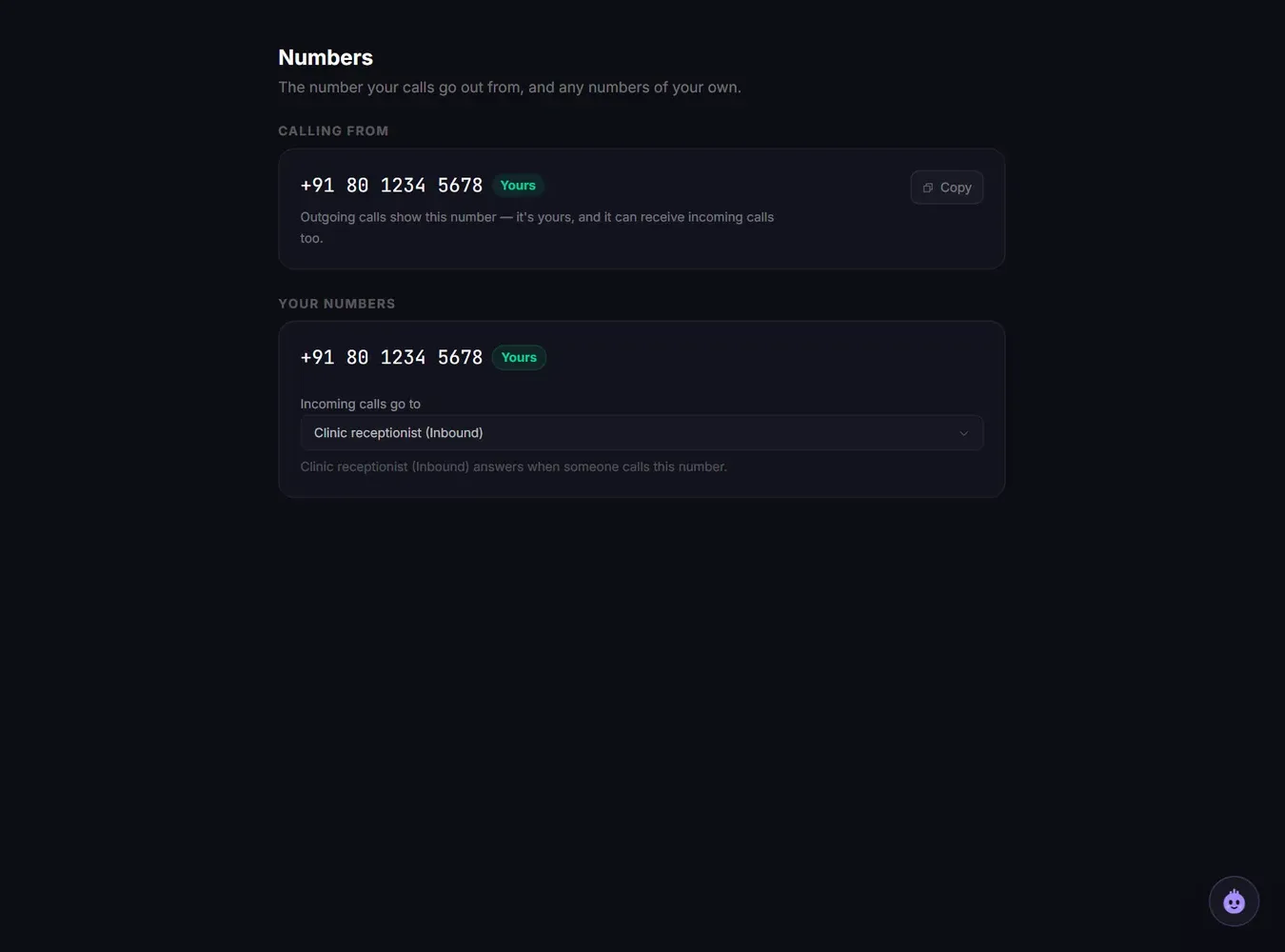
Open Numbers in the sidebar. Calling from shows the number your outgoing calls use, marked Shared or Yours.
What a number costs
| Plan | Price |
|---|---|
| Free and Builder | ₹749 a month, or ₹1,799 every 3 months (plus 18% GST) |
| Business | 1 number included. An extra number is the same add-on |
| Enterprise | ₹1,500 every 3 months (plus 18% GST) |
The number is a subscription that renews automatically.
Buy a number
- Open Numbers and click Get a number, or open Plan & billing and find Dedicated number under Add-ons.
- Choose monthly or every 3 months.
- Click Subscribe, check the total with GST and pay through Razorpay.
Only the workspace owner can pay.
On Business, you do not need to buy one. Vyora sets up the included number for you, and the Plan & billing page shows it under Dedicated number once it is ready.
After you pay
Vyora sets up the number after payment, so it does not appear instantly. While it is being set up, the Numbers page shows Your number is on the way with the date your payment was received. You get an email when it is ready, and it then appears under Your numbers.
Once it is ready, outgoing calls from your workspace use it automatically. Calling from changes to your number and shows Yours. You do not need to link it to an agent for outgoing calls.
Link the number to an agent for incoming calls
- Make sure the agent's Agent Type is Inbound or Both. Open the agent, go to the Setup tab, change the type and click Save Changes.
- Open Numbers.
- Under your number, open Incoming calls go to and pick the agent.
- The line under the menu changes to say that agent answers when someone calls this number.
A number answers with one agent at a time. Picking another agent moves the number to that agent. You need the Admin or Owner role to change this.
If you see "You don't have an agent that can take incoming calls yet", none of your agents is set to Inbound or Both. If you see "This number is still being set up.", wait for the ready email.
Paid, but the number is not showing
- "Your number is on the way" is showing: your payment was received and setup is in progress. Do not pay again.
- You paid, but the page shows neither your number nor "Your number is on the way": do not pay a second time. Raise a ticket or email hello@vyora.ai with your Razorpay payment ID, and the team will link the payment to your workspace.
- The number shows but you cannot pick your agent: change the agent's type to Inbound or Both first, as above.
Related articles
Still stuck?
Write to us with what you tried. A person on the team reads every message and replies by email.