Find call recordings, transcripts and summaries
Updated
Quick answer
Open Calls in the dashboard sidebar and click any call. You get the recording (play or download), the full transcript, an AI summary, key points and the analysis fields. Recordings are kept for 60 days; transcripts stay.
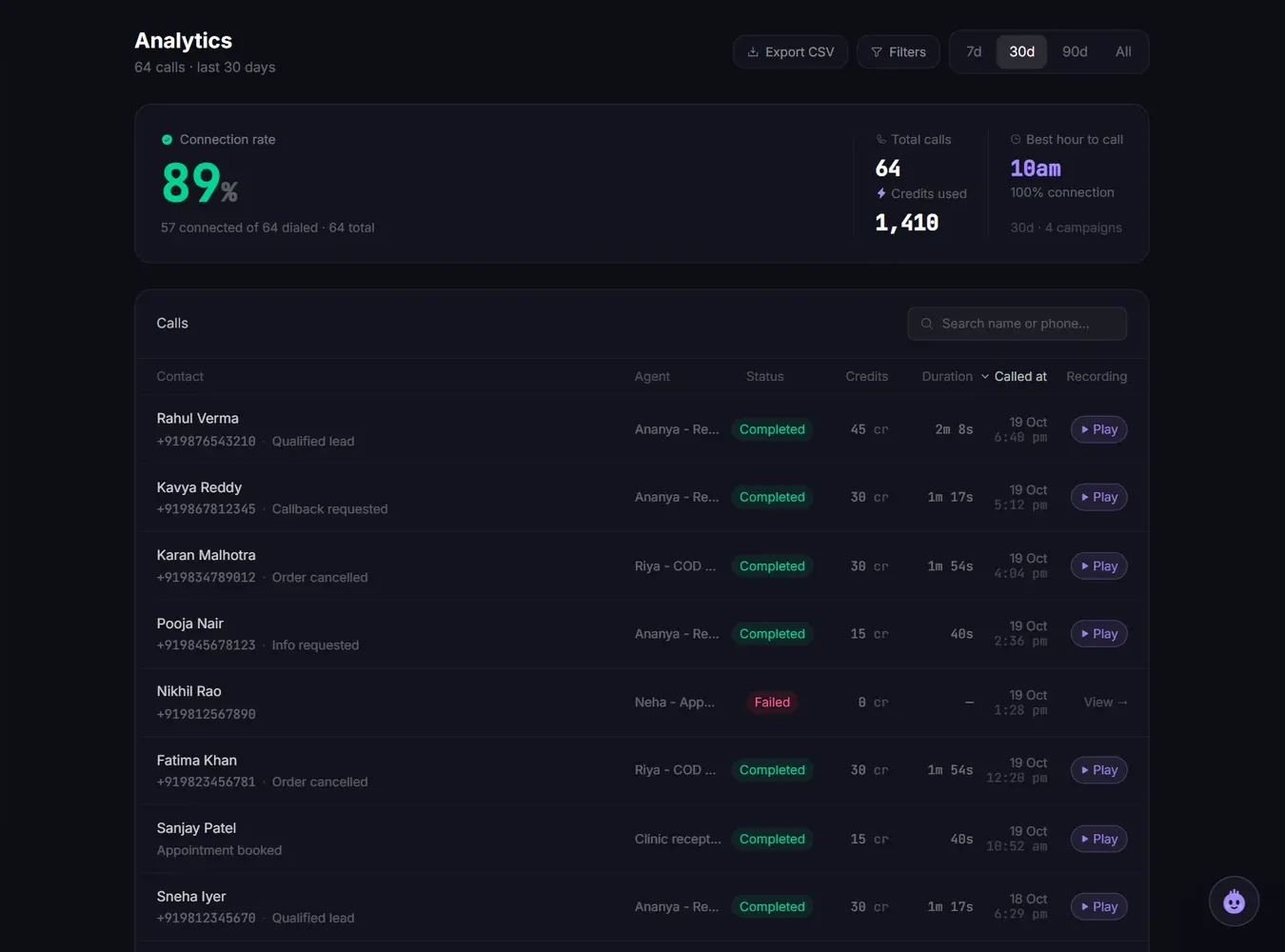
Open the Calls page
- In the dashboard sidebar, click Calls.
- Every call from every agent and campaign is listed, newest first.
- Click a call to open its details.
To see one agent's calls only, go to Agents and click Calls on that agent's card.
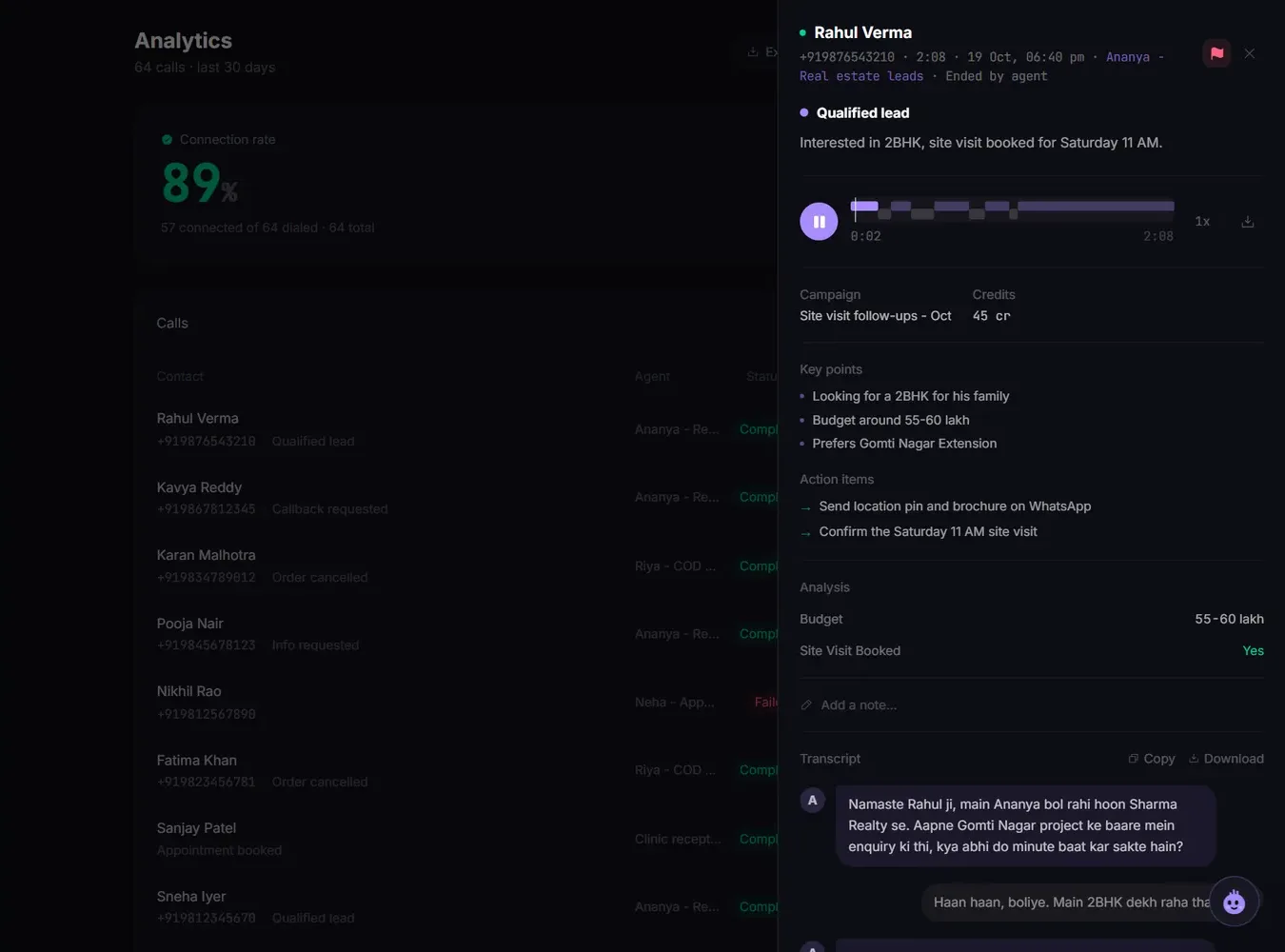
What each call shows
- AI outcome and summary: a short summary of what happened on the call.
- Recording: the audio of the whole call.
- Details: the campaign, the number it was called from and the credits it used.
- Variables: the values the agent used, such as the contact's name.
- Key points and action items picked out of the conversation.
- Analysis: the post-call fields you set up on the agent, such as "interested" or "preferred time".
- Note: add your own note to the call.
- Transcript: every line said by the agent and the customer.
Play or download the recording
- Click Play recording to listen in the browser. The speed button plays it faster.
- Click Download recording to save the audio file, for example to share it with a courier partner as proof of an order confirmation.
If you see "Preparing recording...", the call has just ended and the audio is still processing. Check back in a minute.
Recordings are kept for 60 days. After that the call shows "Recording expired" and the transcript stays. Download any recording you need to keep longer.
Copy or download the transcript
Under Transcript, click Copy to copy the whole conversation, or Download to save it as a text file.
Filter and search calls
- Date range: 7 days, 30 days, 90 days or all.
- Campaign and agent.
- Call status: completed, failed or cancelled.
- Voicemail: yes or no.
- Search by contact name or phone number.
How far back you can see depends on your plan: 15 days on Free, 30 days on Builder and 60 days on Business. Older calls are hidden, not deleted, and come back if you upgrade.
Export calls to CSV
Click Export CSV on the Calls page to download the filtered list as a spreadsheet (file name vyora-calls-<date>.csv), including each call's status. Export is available on Builder and Business.
To send call results to a Google Sheet or your CRM automatically as each call ends, use the Google Sheets integration or a webhook instead.
Related articles
Still stuck?
Write to us with what you tried. A person on the team reads every message and replies by email.