Launch a calling campaign from a CSV file
Updated
Quick answer
Go to Campaigns, click New Campaign, pick an agent, upload a CSV with a Name and a Number column plus any variables your agent uses, map the columns, set the schedule and click Launch Campaign. Free allows 25 contacts per campaign, Builder 1,000 and Business 5,000.
Prepare your CSV file
Your file must be a .csv file with a header row and one contact per row. If you use Excel or Google Sheets, save or download the sheet as CSV.
- Name: the contact's name. The agent can greet them by first name, which Vyora takes from this column automatically.
- Number: the mobile number to call.
- One column for each agent variable: if your agent's script uses variables such as a course name or an order amount, add a column for each.
Pick your agent first, then click Download sample CSV to get a file with the right columns for that agent.
Name,Number,course_name
Rahul Sharma,9876543210,MBA
Priya Patel,9123456789,BBA
How many contacts you can upload
| Plan | Contacts per campaign |
|---|---|
| Free | 25 |
| Builder | 1,000 |
| Business | 5,000 |
| Enterprise | No limit |
A list of 300 or more customers fits in one campaign on Builder or Business. A list of 10,000 numbers needs two Business campaigns of 5,000 each, or Enterprise. If the file is too big you see "Your ... plan supports up to ... contacts" and must split the file or upgrade.
Number formats that work
Pick the Country Code under Calling List Settings (India +91 is the default). Then each number can be written as:
- 10 digits:
9876543210 - With the country code:
919876543210or+919876543210
Spaces and dashes are ignored. When you launch, Vyora removes numbers that are not valid mobiles, such as landlines and toll-free numbers, and does not call them. Removed numbers cost nothing.
Launch the campaign
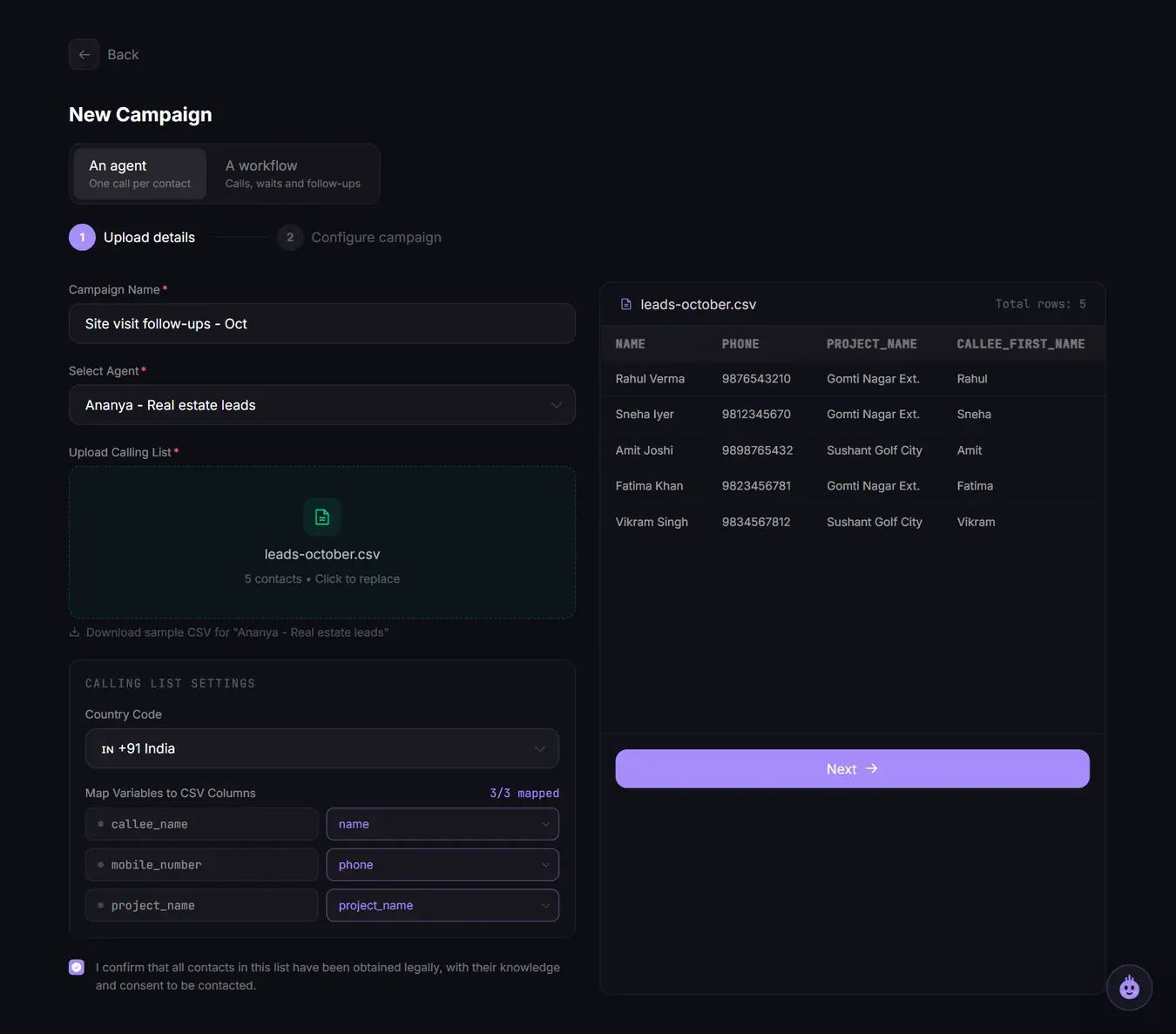
- Open Campaigns and click New Campaign. Choose An agent (one call per contact).
- Enter a Campaign Name and choose the agent under Select Agent.
- Drop your file into Upload Calling List.
- Under Map Variables to CSV Columns, match each variable to a column. Name and Number are matched automatically when the headers are called Name and Number.
- Tick the box confirming your contacts agreed to be contacted, then click Next.
- Set the Start Date, Start Time, End Date and End Time. A start less than 5 minutes away is moved to 5 minutes from now.
- Check the Campaign Summary and click Launch Campaign.
Calling hours and retries
Calls only go out between 9 AM and 9 PM IST, as TRAI rules require.
- Free: fixed at 9 AM to 9 PM, with 2 retries 30 minutes apart for contacts who do not answer.
- Builder and above: choose a narrower Daily Calling Window, 1 to 3 retries, and a Cooldown Period of 10, 15, 30 or 60 minutes.
Up to 10 calls can run at the same time. Business accounts are given priority.
Estimated credits
The summary shows Est. credits needed: contacts x 15 credits, which assumes every contact answers and talks for up to one minute. Unanswered calls are free, so most campaigns use less. If your balance is lower, Launch Campaign is disabled and a top-up button appears. See How credits are charged.
First launch: verify your WhatsApp number
The first time you launch, Vyora asks you to verify your mobile number with a WhatsApp OTP. This is needed once per workspace. Your campaign settings stay in place and the launch continues after you verify. If the code does not work, see OTP verification fails.
Run a workflow instead (Business)
On Business you can choose A workflow instead of an agent. Each contact then goes through a published workflow with calls, waits and follow-up steps, rather than a single call.
Related articles
Still stuck?
Write to us with what you tried. A person on the team reads every message and replies by email.