Call leads from Google Sheets and save results
Updated
Quick answer
Connect Google Sheets on the Integrations page, then set it up inside a Workflow. Every new row (or Google Form response) starts a call within a minute, and an "Add to Google Sheet" step saves each result as a new row. It adds rows; it does not update the status on the original row.
What the Google Sheets integration does
- Start calls from a sheet: every new row in a sheet you pick starts a call within a minute. This works with Google Forms too: pick the form's response sheet.
- Save call results: after the call, Vyora adds one new row per contact with the details you choose, such as name, phone, outcome, summary and your agent's answers.
Both parts are set up inside a Workflow. Connecting Google Sheets needs the Builder plan, and Workflows need the Business plan, so you need Business to use it end to end.
Vyora can only open the sheets you pick, nothing else in your Google Drive.
Connect your Google account
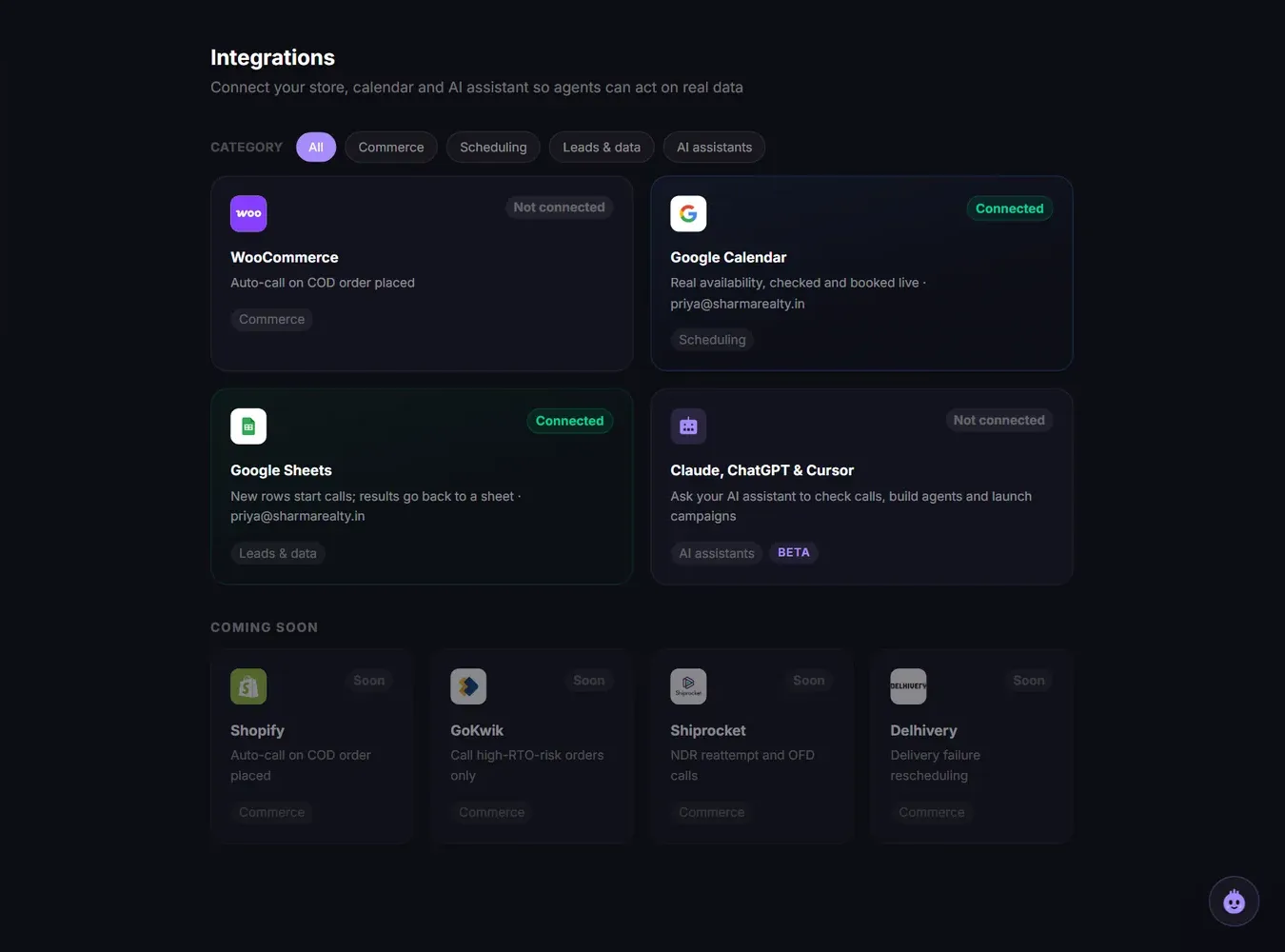
- Open Integrations in the sidebar and click Google Sheets.
- Click Connect Google Sheets and sign in with Google.
- When it is done, the panel shows "Connected as" with your Google email.
If you see "Google access expired or was removed", click Reconnect Google Sheets.
Call every new row
- Make sure the first row of your sheet has column names, like Name and Phone.
- Open Workflows, open your workflow and click Google Sheet at the top.
- Pick the spreadsheet and the tab.
- Choose the Phone column, the Name column, and a column for each variable your agent uses.
- Tick the box to also call the rows already in the sheet only if you want existing rows called now. Otherwise only rows added from now on are called.
- Click Start calling new rows.
- Publish the workflow. Until it is published, new rows wait in the sheet.
The panel then shows "Checking every minute" and when the sheet was last checked. Calls are charged like any other call. If you add or rename columns later, click Refresh.
To stop, open the same panel and click Turn off. New rows are then ignored, and contacts already in progress carry on.
Save call results to a sheet
- In the workflow, add an Add to Google Sheet step after the Call step.
- Pick a sheet, or let Vyora create a new results sheet in your Google Drive with the right columns.
- Under What goes in each column, choose what fills each column.
- Save and publish the workflow.
Each contact gets one new row. If you add new post-call questions to your agent later, Vyora can add the missing columns for you.
Can it update the status on the same row?
No. Vyora does not edit existing rows. It cannot write a call status back into the row the lead came from.
What you can do instead:
- Send results to a separate tab in the same spreadsheet, with the phone number as one column, and match rows using a lookup formula in Google Sheets.
- Do not send results to the same tab that starts calls. Every new row there counts as a new lead and starts another call.
Not on Business?
Use a CSV campaign instead: download your sheet as CSV and upload it in New Campaign. See Launch a calling campaign from a CSV file. On Builder and above you can export call results as CSV from the Calls page.
Disconnect
On the Integrations page, open Google Sheets and click Disconnect. Workflows that start from a sheet stop picking up new rows, and Add to Google Sheet steps stop writing.
Related articles
Still stuck?
Write to us with what you tried. A person on the team reads every message and replies by email.