See and disconnect AI apps (Claude, ChatGPT) connected to Vyora
Updated
Quick answer
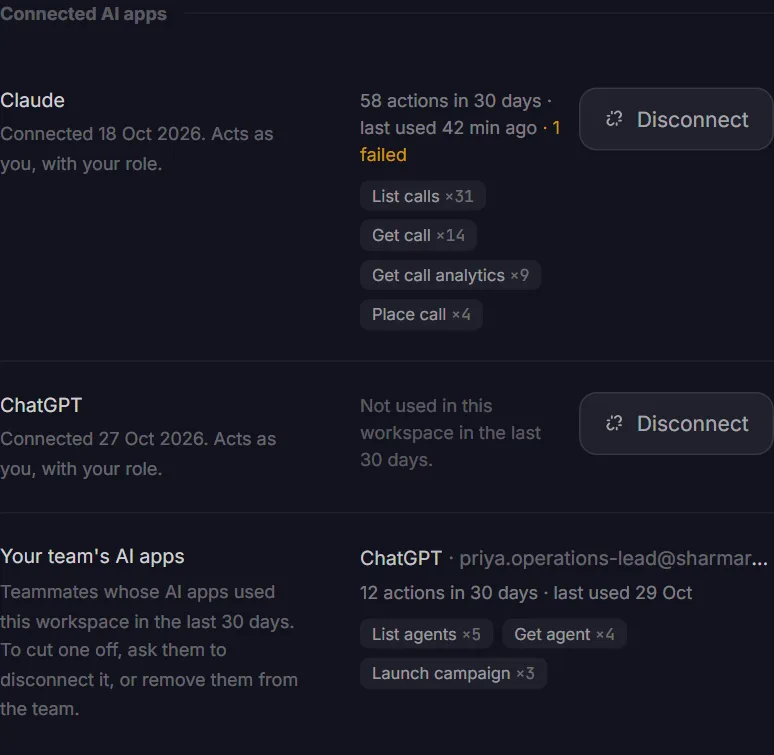
Open Settings, go to the Integrations tab and scroll to Connected AI apps. Each app you connected shows when you connected it, how many actions it took in this workspace in the last 30 days, which actions, and when it was last used. Click Disconnect to cut that app off straight away. Owners and admins also see which teammates' AI apps used the workspace.
What a connected AI app can do
When you connect Claude, ChatGPT or another AI assistant to Vyora, it signs in as you. It can do what your role allows: read your calls and agents, create and edit agents, and place calls or launch campaigns. Before anything that dials or spends credits, you are asked to approve it yourself, in the assistant or on a Vyora link.
To connect an assistant, open Integrations in the app and choose AI assistants, or follow the steps on vyora.ai/mcp. In ChatGPT, search Vyora in Plugins (by Vyora AI Labs LLP), click Install plugin and sign in with your Vyora account.
See your connected apps and what they did
- Open Settings and go to the Integrations tab.
- Scroll to Connected AI apps.
For each app you connected you see:
- the date you connected it
- how many actions it took in this workspace in the last 30 days, and how many failed
- which actions, for example List calls ×31 or Place call ×4
- when it was last used
"Not used in this workspace in the last 30 days" means the app is still connected but did nothing here recently. If you belong to several workspaces, each one shows only what happened in it.
Disconnect an app
- Click Disconnect next to the app.
- Confirm.
The app loses access to Vyora straight away, in every workspace. Your other apps and your browser stay signed in. To use it again, connect it again from the AI app.
To cut off every app and every device at once, use Sign out everywhere on the Security tab.
Your team's AI apps (owners and admins)
Owners and admins also see Your team's AI apps: every teammate whose AI app used this workspace in the last 30 days, with the same action counts. You cannot disconnect a teammate's app for them. Ask them to disconnect it, or remove them from the team on the Team tab, which ends their access to the workspace.
What Vyora records
For each action an AI app takes, Vyora keeps the name of the action, which app did it, who it acted for, when, and whether it worked. It never keeps what you asked, the phone numbers, the names or the call content. Records are kept for 180 days. Recording started on 30 October 2026, so older activity is not shown.
Common questions
| Question | Answer |
|---|---|
| I don't see an app I connected | It may have been disconnected, or you signed out everywhere. Connect it again from the AI app. |
| The counts look lower than expected | Only the last 30 days in the current workspace are counted. Switch workspace to see the others. |
| Does disconnecting delete anything? | No. Agents, calls and campaigns the app created stay as they are. |
Related articles
Still stuck?
Write to us with what you tried. A person on the team reads every message and replies by email.