Create your first AI calling agent
Updated
Quick answer
Go to Agents and click New Agent. Pick Build with Vyora AI, a template or Start from scratch, set the language, agent type and voice, review the script and click Create Agent. Then click Call on the agent card to test it on your own phone.
Pick how you want to start
Open Agents in the sidebar and click New Agent. Vyora asks how you want to build it:
| Option | What happens |
|---|---|
| Build with Vyora AI | You describe your business and Vyora AI writes the full script. |
| Choose from a template | You pick a ready-made script for your industry, then adjust it. |
| Start from scratch | You write every part of the script yourself. |
If you are not sure, pick Build with Vyora AI. You can edit everything afterwards.
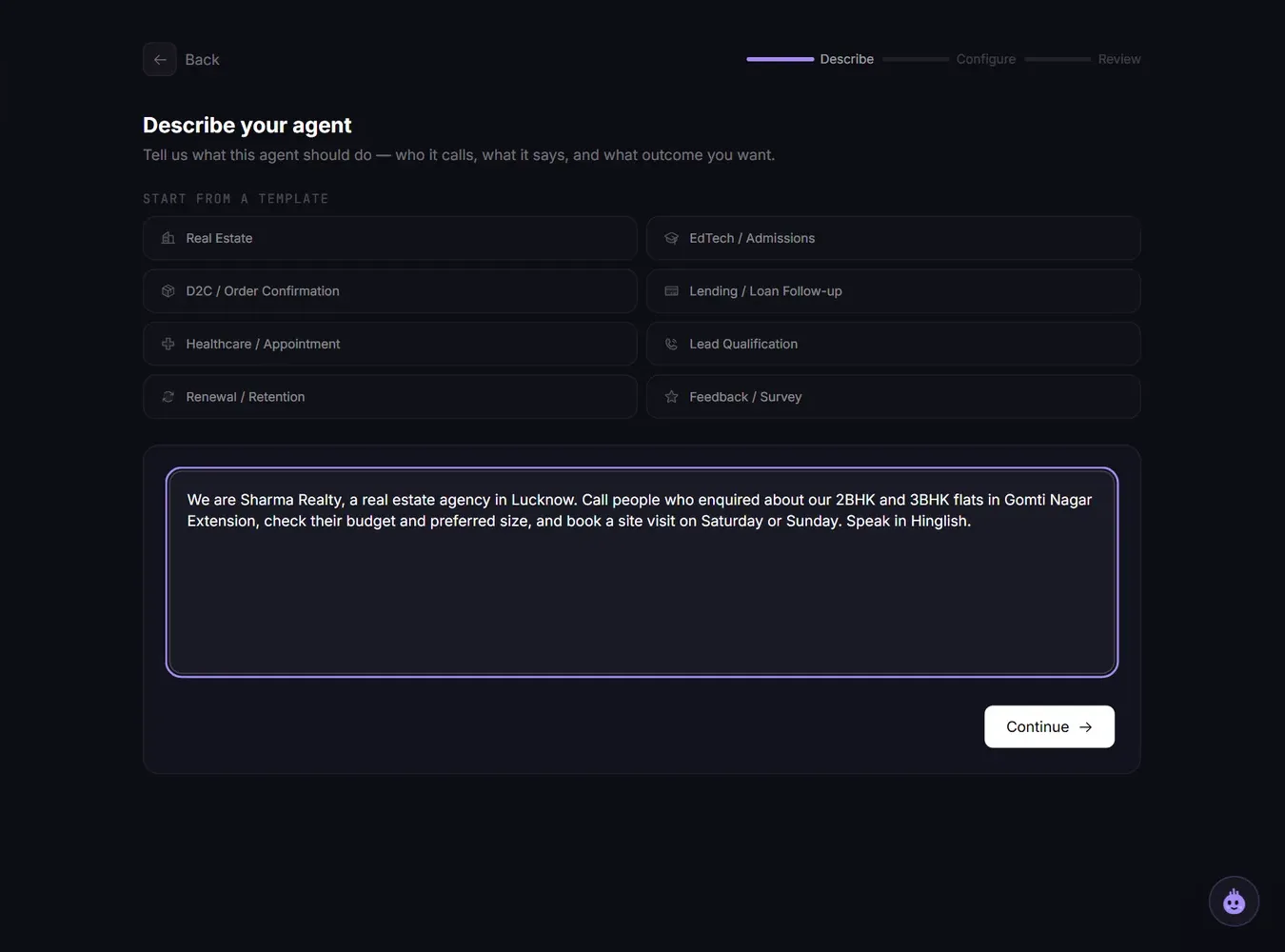
Step 1: Describe your agent (Vyora AI only)
- Under Describe your agent, write who the agent calls, what it says and what outcome you want. You can click one of the examples, such as Real Estate or D2C / Order Confirmation, to fill the box and then edit it.
- Click Continue. Vyora asks A few quick questions. Pick the closest answers and click Build My Agent.
- Check Your improved prompt, edit it if needed, and click Continue.
You need at least 1 credit in your balance to use the AI prompt improvement.
Step 2: Choose language, agent type and voice
On Voice & Settings:
- Primary Language: the language the agent speaks. When you pick a language other than English, English (India) is set as the Secondary Language automatically. You can change it or set it to None. See Languages and multilingual agents.
- Agent Type:
- Outbound: the agent calls your contacts.
- Inbound: the agent answers calls to your number.
- Both: it does both. Inbound and Both need a dedicated phone number. Without one, those options are disabled.
- Voice Speed: leave it at the default unless callers find the voice too fast or slow.
- Select Voice: play a few samples and pick one. Only voices that speak your chosen languages can be selected. When you set a secondary language, look for the Speaks both tag.
Click Generate Script (Vyora AI) or Continue (template or scratch).
Step 3: Review the script and create the agent
On Review your agent, give the agent a name under Agent Name, then read every section: Intro Message, Introduction & Objective, Response Guidelines, Task, FAQ and Sample Conversations. With Vyora AI you can click Regenerate for a fresh version.
Replace any placeholder such as [Company] with your real business name. The intro is read out word for word. For tips, see Write a good agent script.
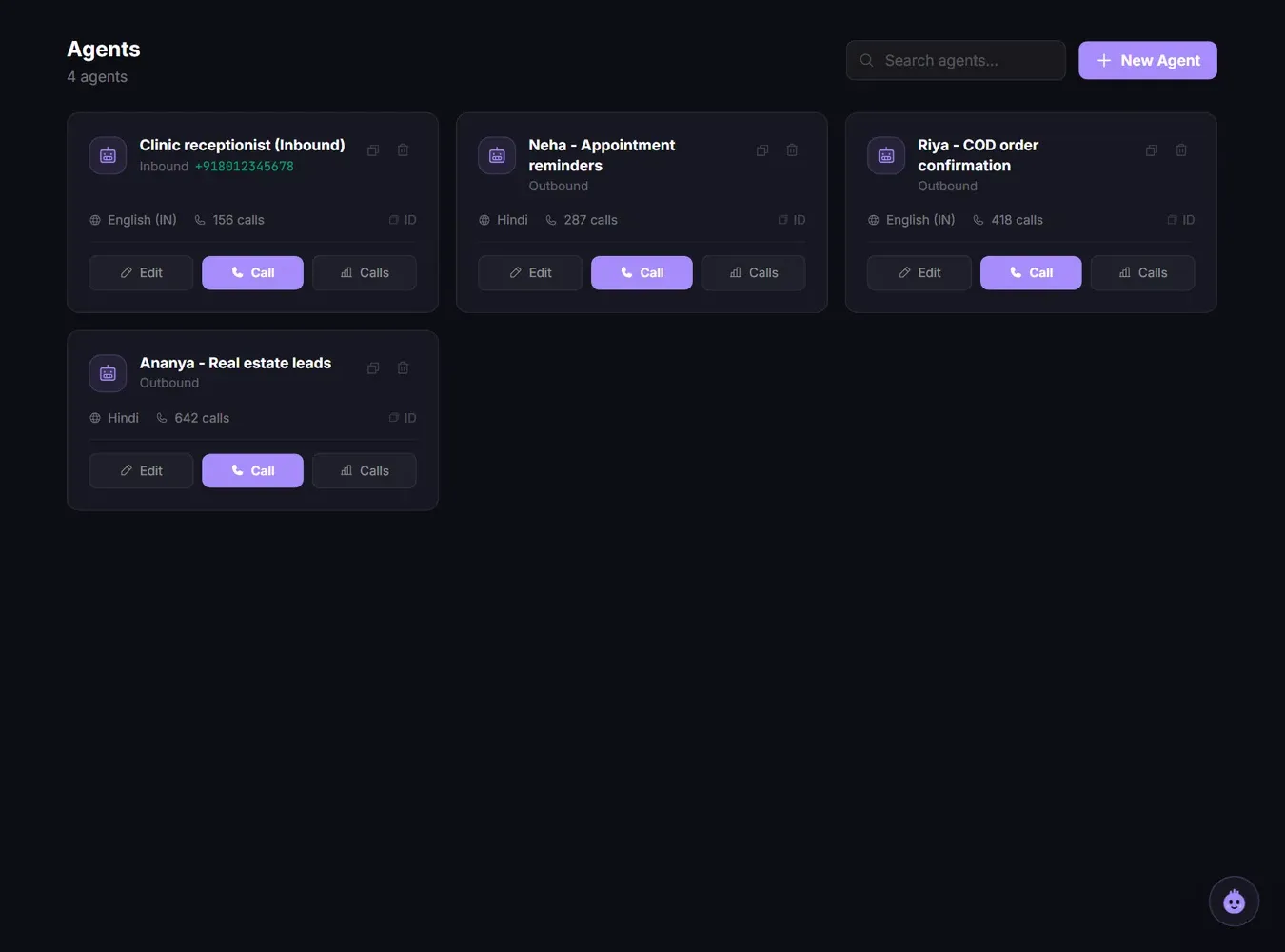
Click Create Agent. You return to the Agents list with your new agent on it.
Your plan sets how many agents you can have: 3 on Free, 7 on Builder, unlimited on Business and Enterprise.
Place a test call
- On the agent card, click Call (or open the agent and click Test call).
- Enter a Contact name and your own Phone number.
- Fill in any Agent variables the script uses.
- Click Call now. You see Call initiated! and your phone rings.
A test call needs at least 15 credits and is charged like a normal call. See How credits are charged.
If the phone does not ring, see My agent or test call is not calling.
Next steps
- Fine-tune the script and call settings: open the agent and click Edit.
- Add your product details: Add a knowledge base.
- Call a list of contacts: Launch a campaign from a CSV.
Related articles
Still stuck?
Write to us with what you tried. A person on the team reads every message and replies by email.