Add, replace or delete a knowledge base
Updated
Quick answer
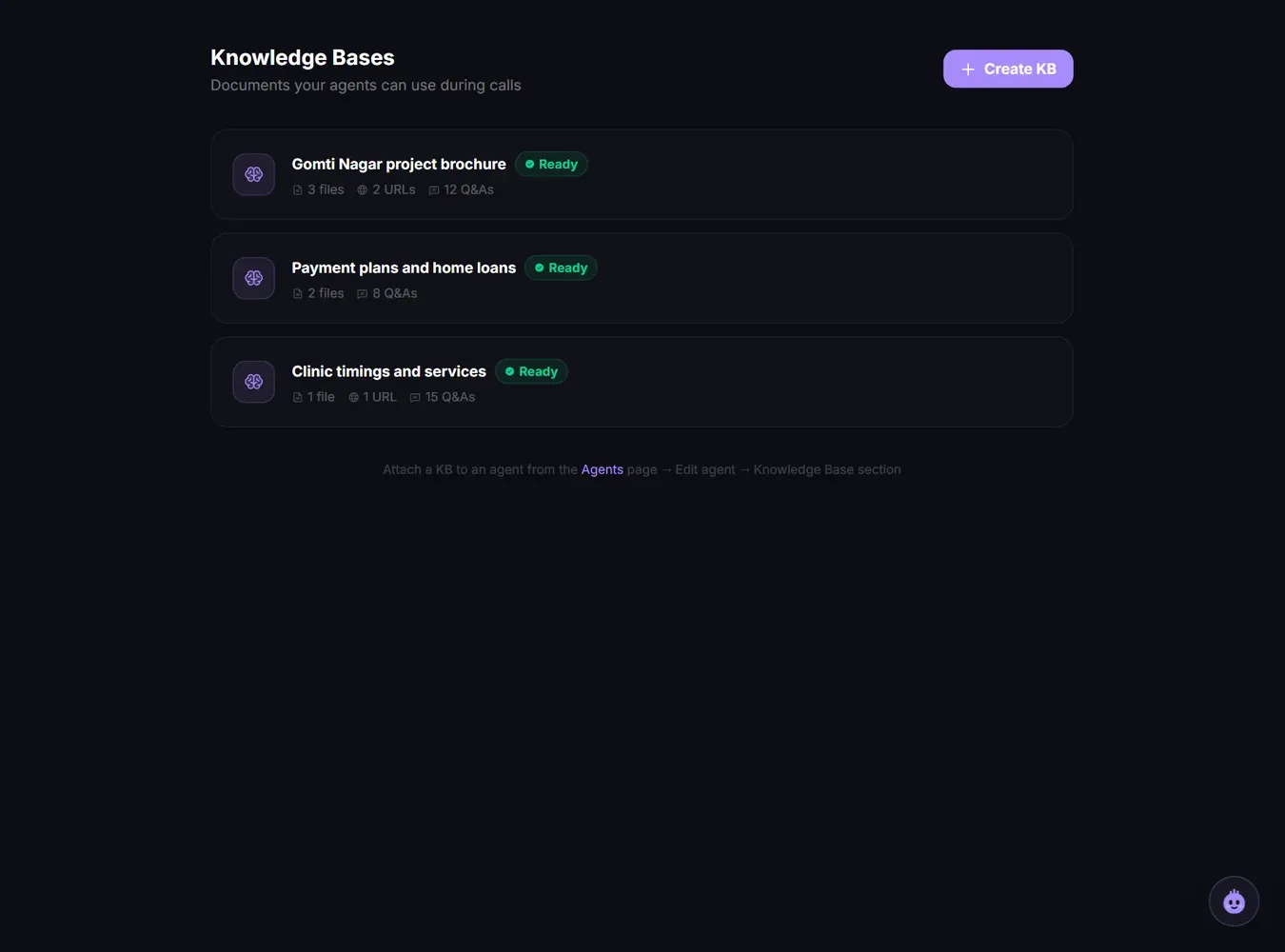
Go to Knowledge Bases, click Create KB, and add PDF, TXT or DOCX files (up to 5 files, 2 MB each, 5 MB total), Q&As or up to 20 website pages. It takes a few minutes to get ready. Then open the agent, pick it under Knowledge Base and click Save Changes. Each agent uses one knowledge base.
What a knowledge base is for
A knowledge base holds details your agent can look up during a call: price lists, product specs, policies, branch addresses, common questions. It keeps the script short. The script says what the call is for, the knowledge base holds the facts.
Create a knowledge base
- Open Knowledge Bases in the sidebar and click Create KB.
- Enter a Knowledge Base Name, for example "Pricing Sheet".
- Add content in any of the three tabs:
- Files: PDF, TXT or DOCX. Up to 5 files, 2 MB each, 5 MB in total.
- Q&A: type a question and its answer. Add as many as you need.
- Website: paste a page address and click Add, or use Discover to find pages on your site and tick the ones you want. Up to 20 URLs.
- Click Create Knowledge Base.
You see "It takes a few minutes to get ready." The card shows Processing, then Ready. While it is processing, hover over the card and click the Check status icon to refresh it.
PDFs must contain real text. If you cannot select or highlight the text in the PDF, it is a scanned image and the agent cannot read it. Export it again as a text PDF, or paste the content into a TXT file or Q&As.
Files that break the limits are skipped and named in a message, for example "(over 2 MB)" or "(5 files max)".
How many you can have
| Plan | Knowledge bases |
|---|---|
| Free | 1 |
| Builder | 3 |
| Business | Unlimited |
| Enterprise | Unlimited |
At the limit, Create KB shows a lock and offers an upgrade. You can still edit and delete the ones you have.
Attach it to an agent
- Open Agents, click Edit on the agent.
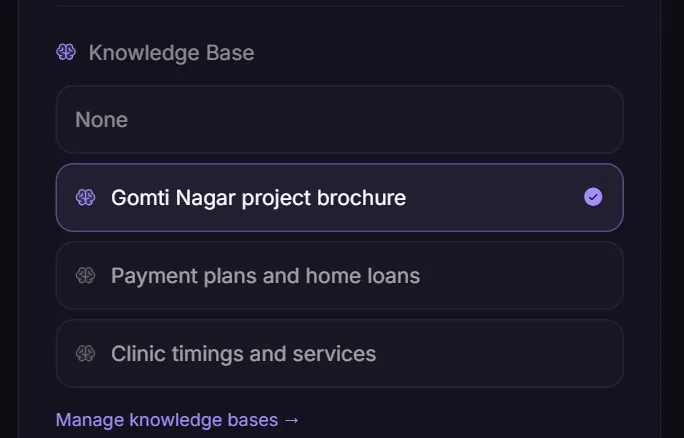
- In the Knowledge Base section, click the knowledge base you want. Pick None to remove it.
- Click Save Changes.
Each agent uses one knowledge base at a time. Several agents can share the same one.
Update or replace the content
Hover over the card and click Edit. You can add new files, Q&As and URLs, and remove old ones. Click Save Changes. It shows "It takes a few minutes to update" and goes back to Processing.
To swap in a completely different set of documents, either edit this knowledge base and remove the old files, or create a new one and select it on the agent instead.
Delete a knowledge base
- Hover over the card and click the bin icon (or Delete inside Edit).
- Confirm. Agents using it stop answering from it. This cannot be undone.
The knowledge base is removed from every agent that used it.
If something goes wrong
| What you see | What to do |
|---|---|
| Failed | The content could not be read. Check the file type and that PDFs have selectable text, then edit and upload again. |
| Partly failed | Some files or links could not be read. The rest works. Open it and re-upload the ones that failed. |
| Re-upload files | Some files were not carried over when your plan was upgraded. Upload them again. |
| "Saved, except: kb id. Please save again." on the agent | The knowledge base was not attached. Check it shows Ready, then click Save Changes again. |
| "Some fields failed to update" | Part of the agent save failed. Save again. If it repeats, raise a ticket with the agent name. |
Related articles
Still stuck?
Write to us with what you tried. A person on the team reads every message and replies by email.