Book appointments with Google Calendar
Updated
Quick answer
On Builder or higher, open Integrations, click Google Calendar and connect your Google account. Set your booking hours, appointment length and timezone, then open the agent, turn on Let this agent book appointments and click Save Changes. The agent only offers free times inside your booking hours and adds each booking to your calendar.
What you need
- Builder plan or higher. On Free, the Google Calendar drawer shows "Calendar booking is available on Builder and above."
- Owner or Admin role in the workspace to connect the calendar.
- A Google account with the calendar you want bookings in.
Step 1: Connect Google Calendar
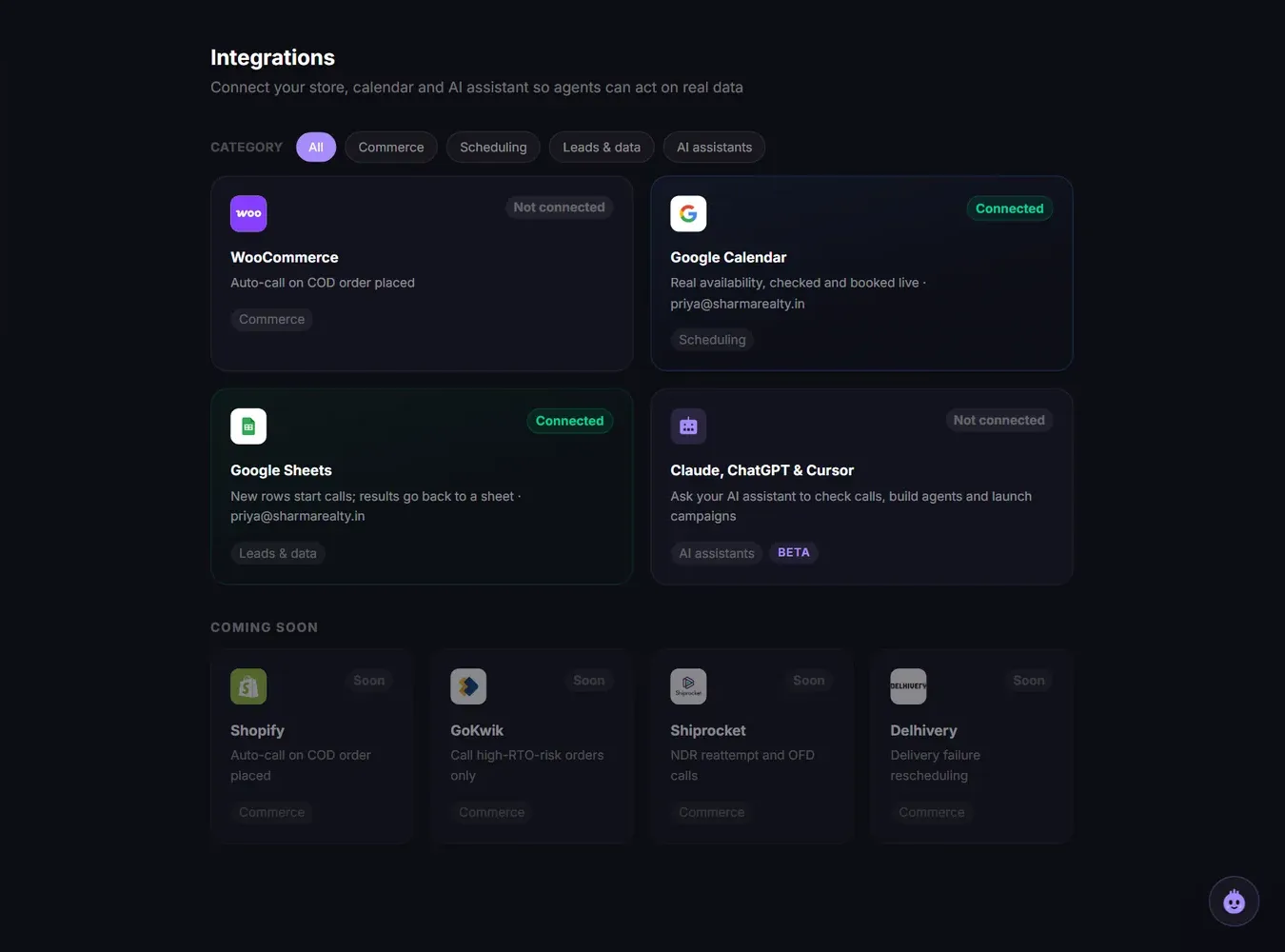
- Open Integrations in the sidebar and click the Google Calendar tile.
- Click Connect Google Calendar and sign in with your Google account.
- Allow access when Google asks. You return to Vyora and the tile shows your email.
- Under Booking calendar, pick which calendar bookings go into.
If Google shows a warning screen saying it has not verified the app, stop there and raise a ticket from the dashboard before you continue. The team will tell you how to proceed.
Step 2: Set your booking hours
In the same Google Calendar drawer, under Booking hours:
| Setting | What it does |
|---|---|
| Working days | Days the agent may book |
| Default opens / Default closes | Your daily hours |
| Day-by-day hours | Different hours for a specific day |
| Appointment length | 10 to 90 minutes. Every booking runs this long |
| Gap between appointments | Free time kept between bookings |
| Earliest booking | Anytime, 1h, 2h, 4h, 24h, 48h or your own number of hours from the moment of the call |
| Book up to | 7, 14, 30 or 60 days ahead, or your own number |
| Timezone | The timezone your hours are in. For India, pick Asia/Kolkata |
Click Save booking hours.
If you have never saved booking hours, the agent uses Monday to Saturday, 10 AM to 6 PM India time, 15 minute appointments, at least 2 hours' notice and up to 14 days ahead.
Step 3: Turn booking on for the agent
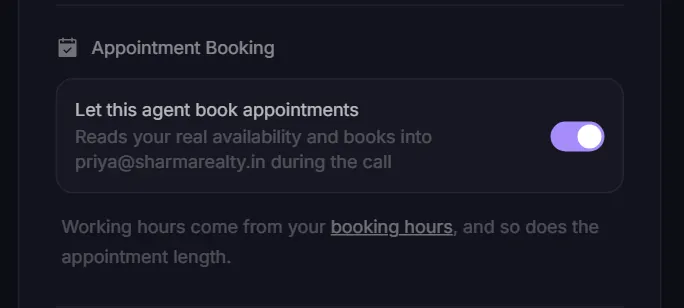
- Open Agents, click Edit on the agent.
- In Appointment Booking, turn on Let this agent book appointments. It shows "Turns on when you save."
- Click Save Changes.
Vyora adds booking instructions to the agent's Response Guidelines for you. Do not write your opening hours or available times into the script. The agent is told never to state hours itself and to offer only the times the calendar check returns.
How a booking works on the call
- The agent checks your calendar for the time the caller asks for. Busy times and times outside your booking hours are not offered; it suggests the nearest free times instead.
- It books only after the caller agrees to one specific time.
- The appointment is added to your Google Calendar with the caller's name, phone number, duration and which agent booked it. That time then shows as busy, so it is not offered again.
"It only offers tomorrow, not today"
This is usually the Earliest booking setting. The agent only offers times at least that far from the moment of the call. With the default of 2 hours, a call at 12:30 PM cannot book 1 PM, so the next free 1 PM slot may be tomorrow. Times after Default closes are also skipped.
To fix it:
- Check Timezone is your local zone, for India Asia/Kolkata.
- Lower Earliest booking, for example to 1h or Anytime.
- Check Default opens and Default closes cover the times you want.
- Click Save booking hours.
Messages you might see
| Message | Fix |
|---|---|
| Connect Google Calendar in Integrations before letting this agent book appointments. | Do Step 1 first |
| Google revoked this connection. Reconnect so your agents can keep booking. | Click Reconnect in the Google Calendar drawer |
| Agent saved, but appointment booking could not be turned on. Try again. | Save again. If it repeats, raise a ticket |
Related articles
Still stuck?
Write to us with what you tried. A person on the team reads every message and replies by email.